
Great vocal mixes rarely come from one magic setting. They come from a few techniques working together, plus a clear idea of how you want the vocal to sound. Nectar Elements puts both in one plugin: it listens to your vocal, builds a tailored chain, and lets you shape every stage from there.
In this tutorial, you'll mix a rap vocal from raw take to finished sound using Vocal Assistant, the Equalizer, the De-esser, two stacked compressors, Dimension, Delay, Reverb, and Pitch.
- Load Nectar 5 Elements on your vocal track
- Run Vocal Assistant in one click, or use the Custom Flow to tell it the style, sound, and reference you want
- Shape tone with the Equalizer and tame harshness with the De-esser
- Control dynamics with the Peak and Smooth compressors
- Add space with Dimension, Delay, and Reverb
- Add pitch correction in the song's key
- Bypass and compare to check every change
What is Nectar 5 Elements?
iZotope Nectar 5 Elements is an all-in-one vocal plugin that shapes your whole vocal chain in one view, covering EQ, compression, de-essing, reverb, delay, and pitch correction. Vocal Assistant listens to your vocal and sets up a starting chain in one click, or you can guide it with the new Custom Flow. Then you fine-tune everything on the Overview page.
Inside Nectar 5 Elements you get:
- Vocal Assistant, including the new Custom Flow for directing the Assistant
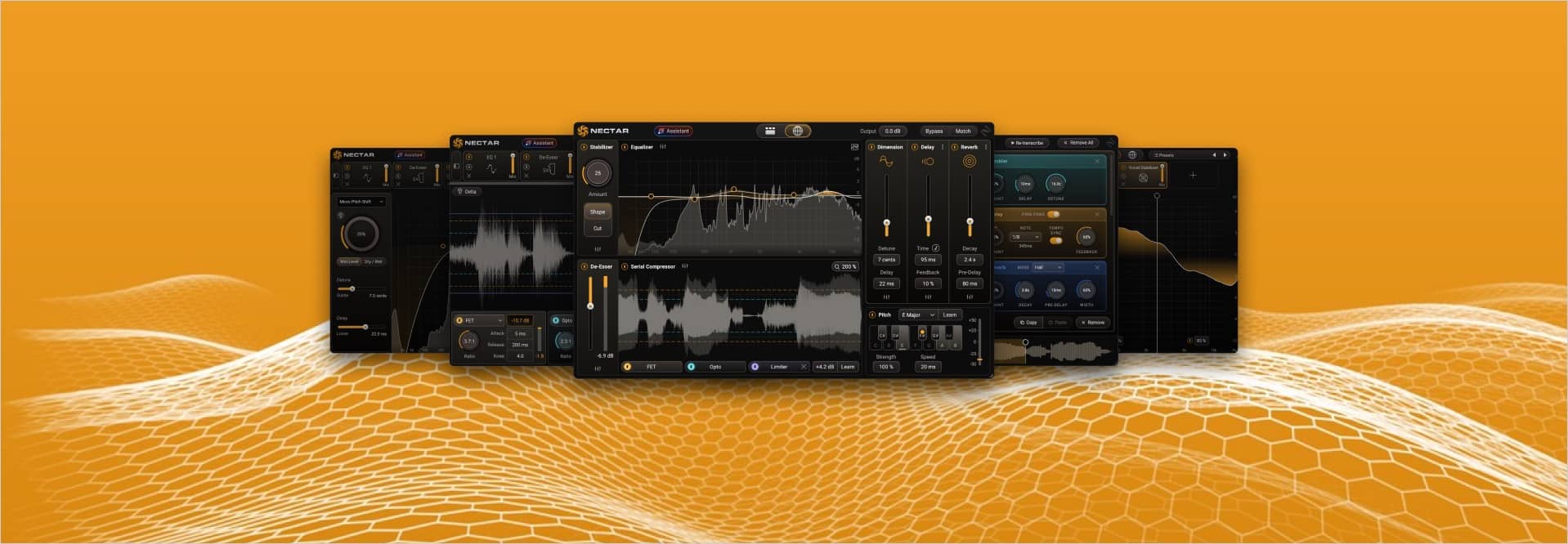
- The Overview page, with core controls for the Equalizer, De-esser, Compressor, Dimension, Delay, Reverb, and Pitch
- Two compressors taken from the Nectar 5 Serial Compressor module, with an oscilloscope display and a Learn button for makeup gain
- Micro Pitch Shift in Dimension, new to Nectar Elements, for wide, full modern vocals
It's a strong fit if you're newer to vocal mixing, record your own vocals, or want a finished-sounding demo without building a chain from scratch.
How to mix vocals with Nectar 5 Elements, step by step
1. Load Nectar 5 Elements on your vocal track
Insert Nectar 5 Elements as the first plugin on your lead vocal track. Pick a section where the artist performs at full energy, like a chorus or the loudest verse, so Vocal Assistant hears the vocal at its most demanding.
2. Choose one-click or the Custom Flow
Vocal Assistant gives you two ways to start:
- One click: let Nectar listen and make every decision. It's the quickest route to a strong starting point.
- Custom Flow: tell Nectar exactly how you want the vocal to sound, so the chain it builds matches your intent from the start.
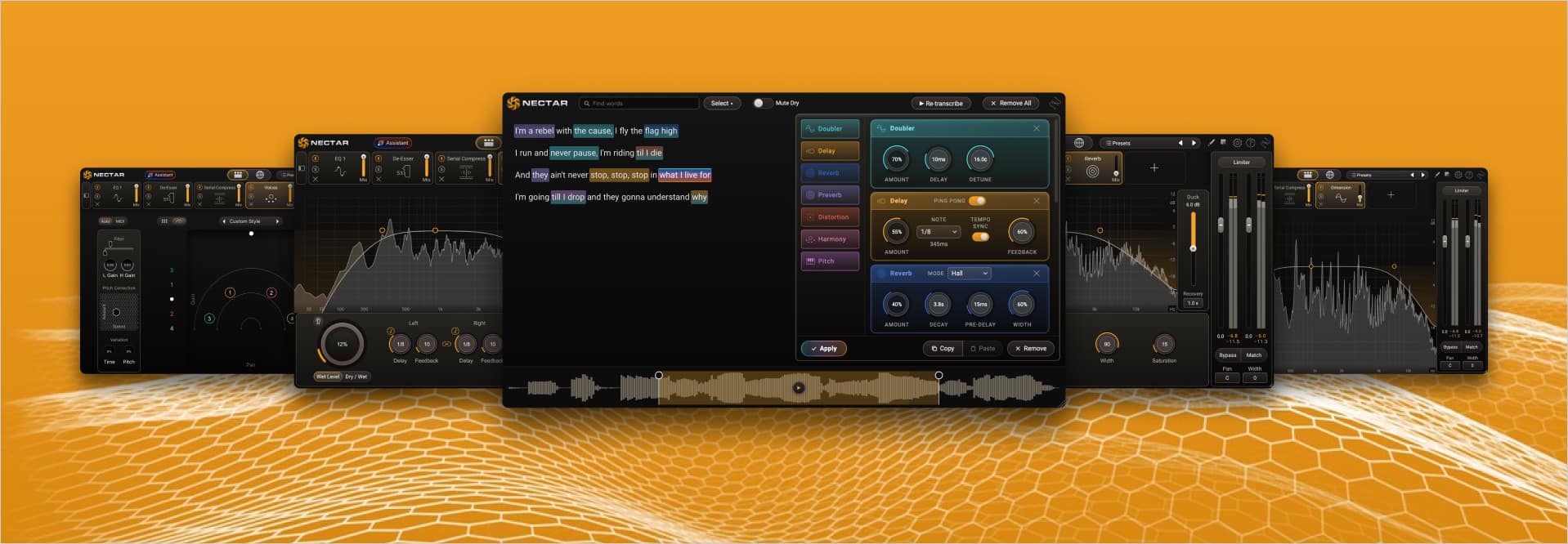
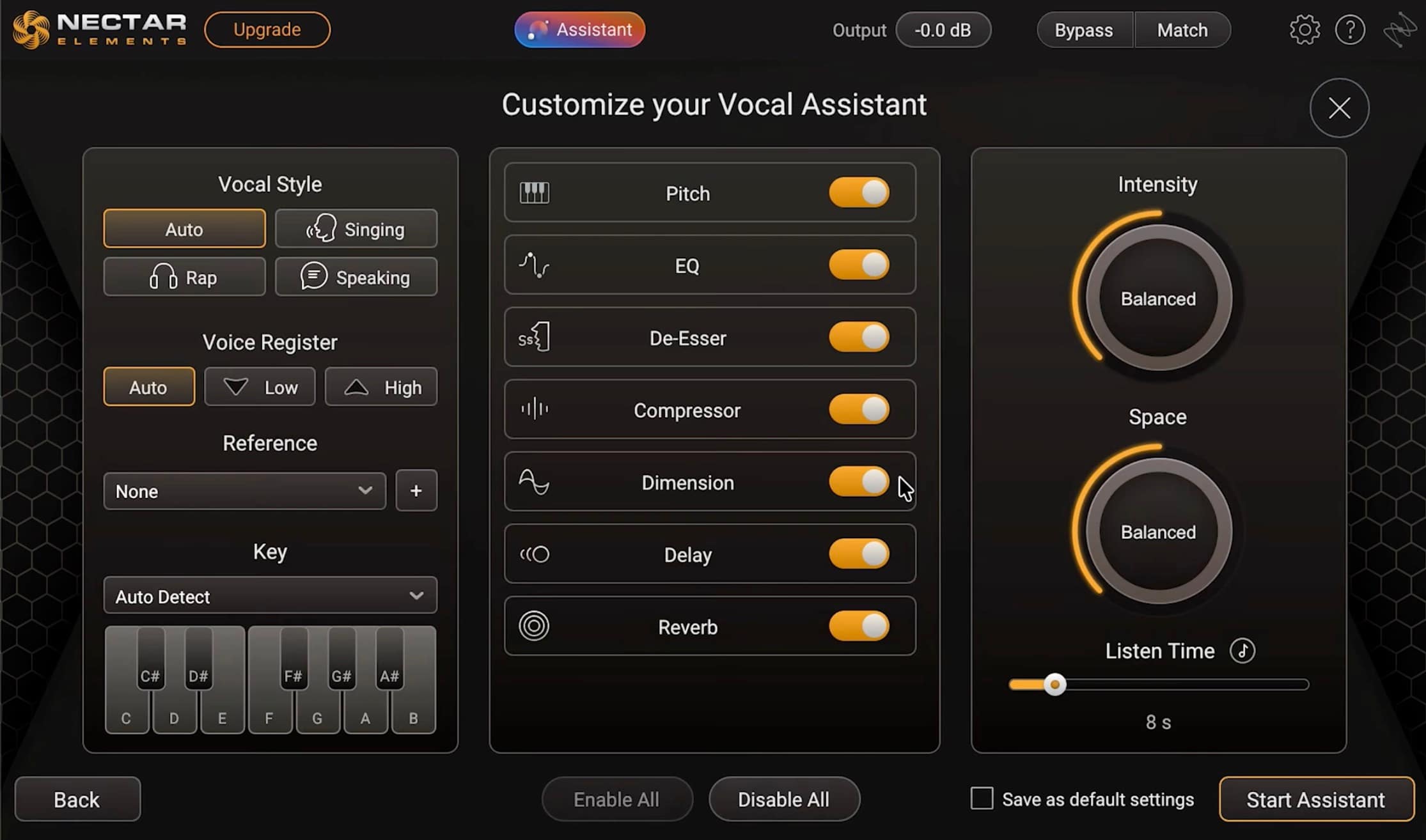 Nectar Elements Custom Flow
3. Guide Vocal Assistant with the Custom Flow
The Custom Flow is where you call the shots. You can:
- Describe the vocal: choose the style so the Assistant makes a more informed decision.
- Match a reference: pick a captured target from Neutron, Tonal Balance Control, or Ozone, or load an audio file of a vocal you know sounds great. Nectar matches the tone of that vocal.
- Choose the processing: decide which modules the Assistant can use in the chain.
- Set Intensity: adjust how much processing Nectar applies.
- Set Atmosphere: decide how much Dimension, Delay, and Reverb the Assistant adds.
- Set Listen Time: give the Assistant more or less time to analyze your vocal.
- Save as defaults: keep your selections for the next session.
In the walkthrough video, we told the Assistant this was a rap vocal, left every module in the chain, and asked for a dramatic, upfront vocal with subtle effects. We dropped Listen Time to 4 seconds and clicked Start Assistant. The chain was ready in seconds.
4. Shape tone with the Equalizer and De-esser
Once the Assistant builds your chain, listen back and adjust it to taste. The Equalizer gives you up to 24 bands to tune the vocal. Use them to cut muddiness in the low mids, reduce boxiness, or add presence and air.
Next, check the De-esser. It tames harsh "s" and "t" sounds that get louder once compression and EQ boosts are in place.
5. Control dynamics with two compressors
Pro mixers rarely ask one compressor to do all the work. Instead, they stack compressors so each handles part of the job. This is called serial compression, and it gives you a steady, upfront vocal without audible pumping.
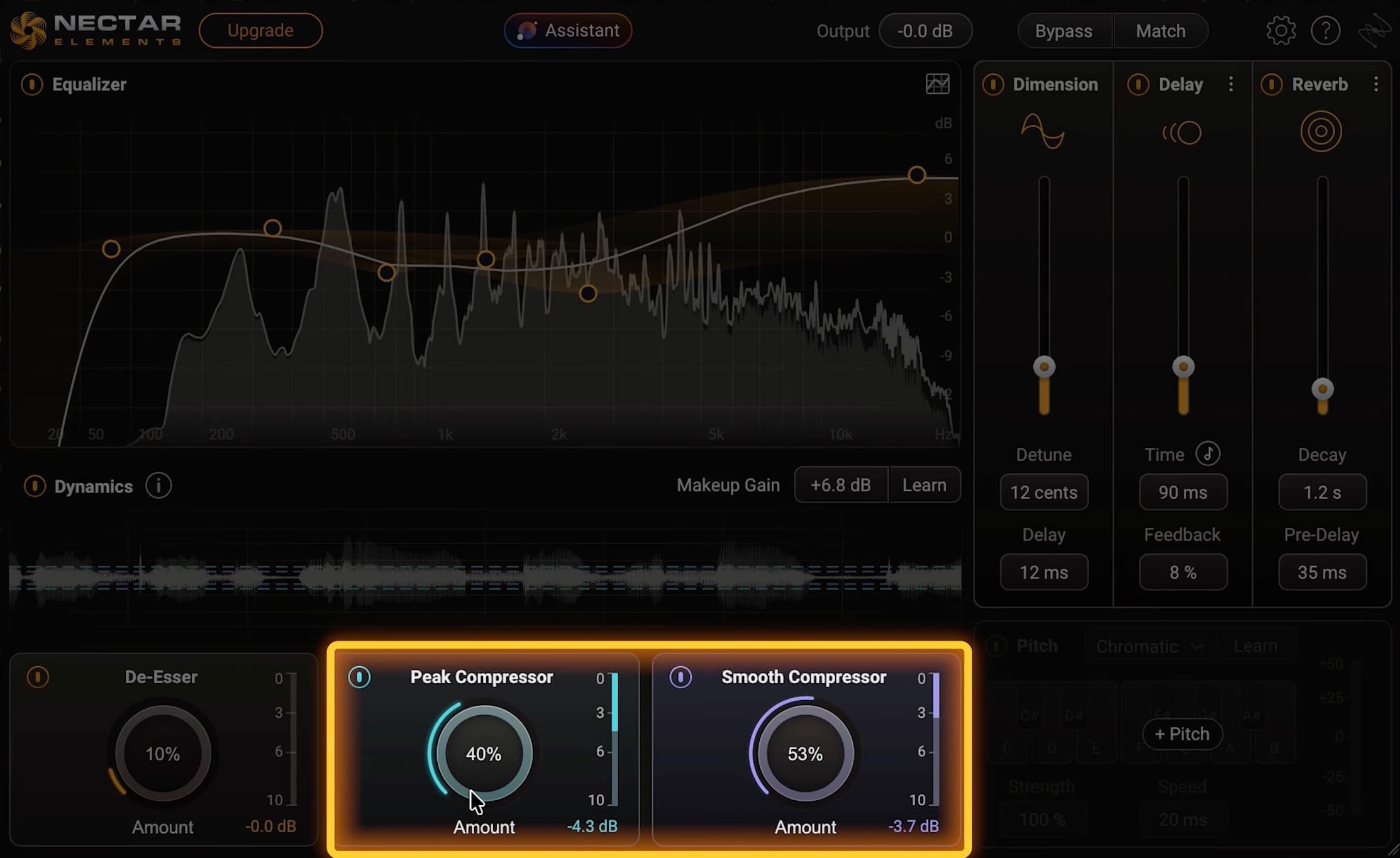
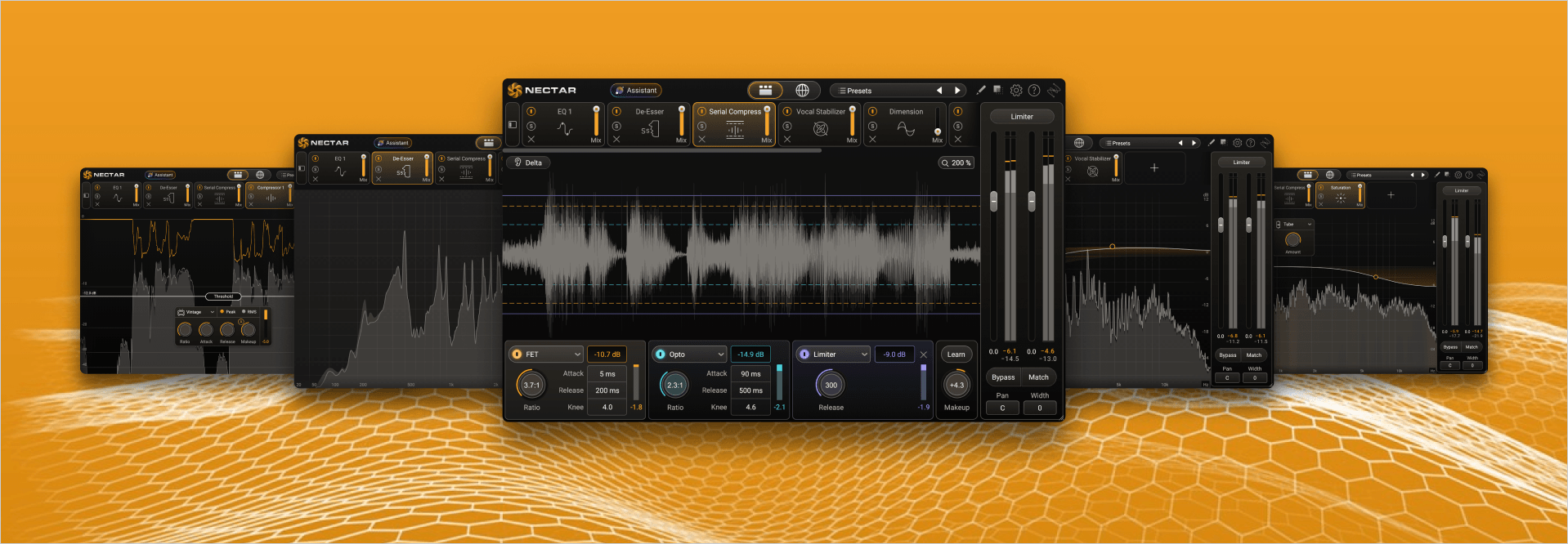
Nectar 5 Elements includes two compressors taken directly from the Nectar 5 Serial Compressor module:
- Peak compressor: catches the initial peaks of the vocal
- Smooth compressor: levels the vocal and brings it to the front of the mix
The oscilloscope shows how much each compressor is working, so you can see the effect as you hear it. Then use the Learn button to set auto makeup gain, so your vocal comes out at the same level it went in.
6. Add space with Dimension, Delay, and Reverb
Dimension, Delay, and Reverb control how much space surrounds your vocal.
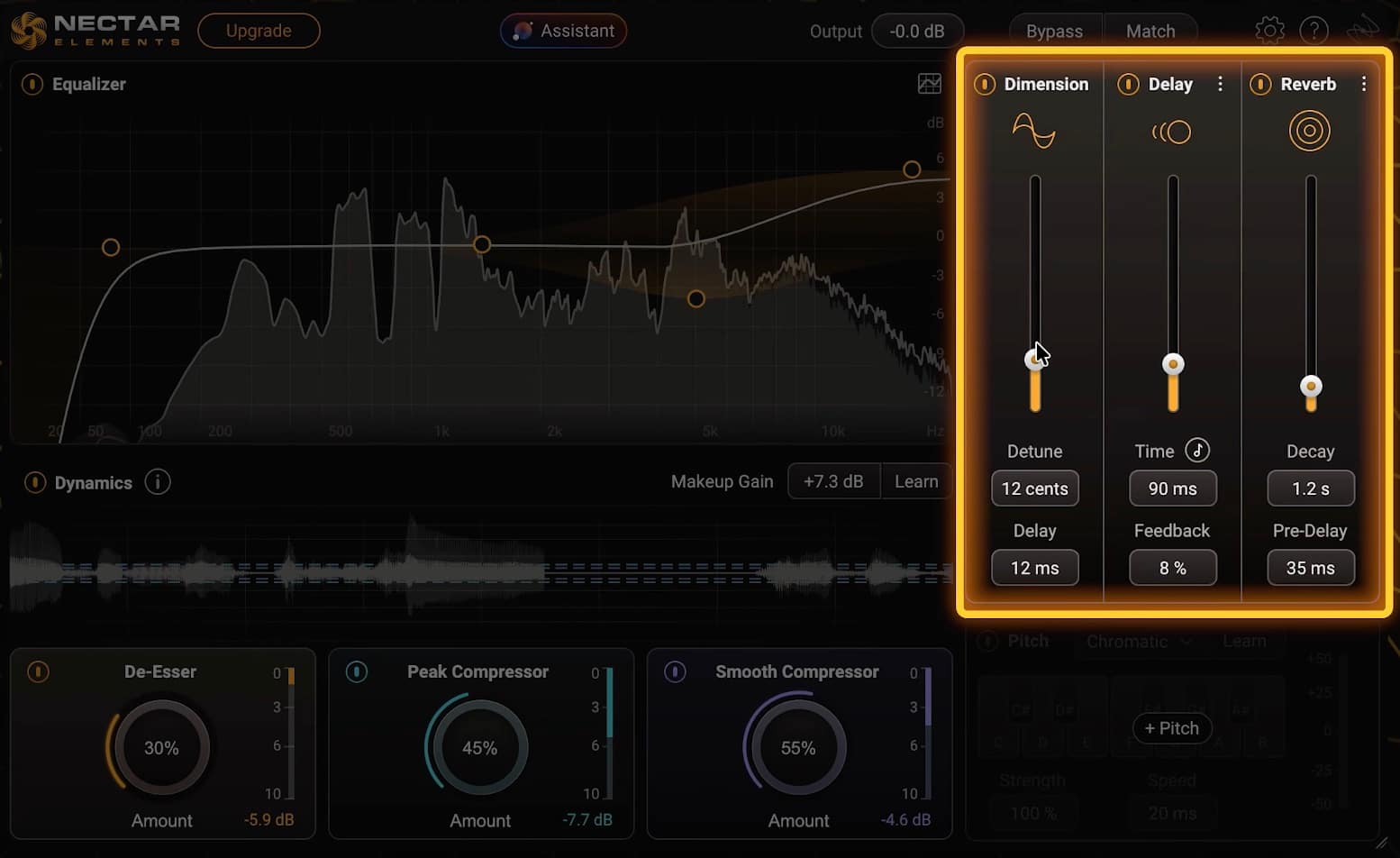 Dimension, Delay, and Reverb in Nectar Elements
- Dimension now includes Micro Pitch Shift, which is new to Nectar Elements. It subtly spreads and detunes the vocal to add the width and weight you hear in modern vocal production.
- Delay adds rhythmic echoes that fill gaps between phrases.
- Reverb places the vocal in a space, from a short room to a long hall.
For a dramatic, upfront rap vocal, keep effects subtle so the words stay clear.
7. Add pitch correction in the right key
Ask Nectar to detect the key of the song, confirm the selection, and add pitch correction. Set the strength and speed to choose between transparent tuning and a more obvious, stylized effect.
8. Bypass and compare
Before you move on, bypass each module to hear what it adds. Then bypass Nectar entirely and compare at a matched level, because louder almost always sounds better at first. If a change doesn't make the vocal clearer, fuller, or more consistent, pull it back.
Start with a strong chain, finish with your sound
Nectar 5 Elements gets you to a pro-quality starting point in seconds, then gives you the control to make the vocal your own. Let Vocal Assistant do the heavy lifting, guide it with the Custom Flow when you know what you want, and fine-tune each stage on the Overview page.